Sync Jira from Sentinel - Create incident
Browse: 🏠 · Solutions · Connectors · Methods · Tables · Content · Parsers · ASIM Parsers · ASIM Products · Logic Apps · 📊
This Playbook will create JIRA incidents for every Microsoft Sentinel which is created. It includes additional information such as tactics, affected user etc.
| Attribute | Value |
|---|---|
| Type | Playbook |
| Solution | AtlassianJiraAudit |
| Source | View on GitHub |
Logic App Connectors
This playbook uses 3 Logic App connectors / built-in actions:
| Connector / Action | Type | Connections | Actions |
|---|---|---|---|
azuresentinel |
Managed | 1 | 1 |
keyvault |
Managed | 1 | 1 |
http |
Built-in | 0 | 1 |
Action parameters (URLs, paths, function IDs)
azuresentinel (Managed)
| Action | Method | Endpoint | Other |
|---|---|---|---|
| Entities_-_Get_Accounts | post | /entities/account |
— |
keyvault (Managed)
| Action | Method | Endpoint | Other |
|---|---|---|---|
| Get_secret | get | [concat('/secrets/@{encodeURIComponent(''', parameters('SecretName Jira'), ''')}/value')] |
— |
http (Built-in)
| Action | Method | Endpoint | Other |
|---|---|---|---|
| Create_JIRA_Ticket | POST | [parameters('JIRA API URL')] |
— |
Additional Documentation
📄 Source: Sync-Incidents/readme.md
Synchronization Tool for Sentinel and JIRA
Author: Thijs Lecomte
Overview
This tool will synchronize incidents between Microsoft Sentinel and JIRA Service Management using the following tools:
- Azure Logic Apps
- Azure Functions
- Automation for JIRA
- Microsoft Sentinel Automation Rules
- Azure Key Vault
This tool will do the following:
- Create an incident in JIRA when an incident is created in Sentinel
- Sync the assigned user from JIRA to Sentinel
- Sync the status from JIRA to Sentinel
- Add the URL to the JIRA incident as a comment in Sentinel
- Sync public comments from JIRA to Sentinel
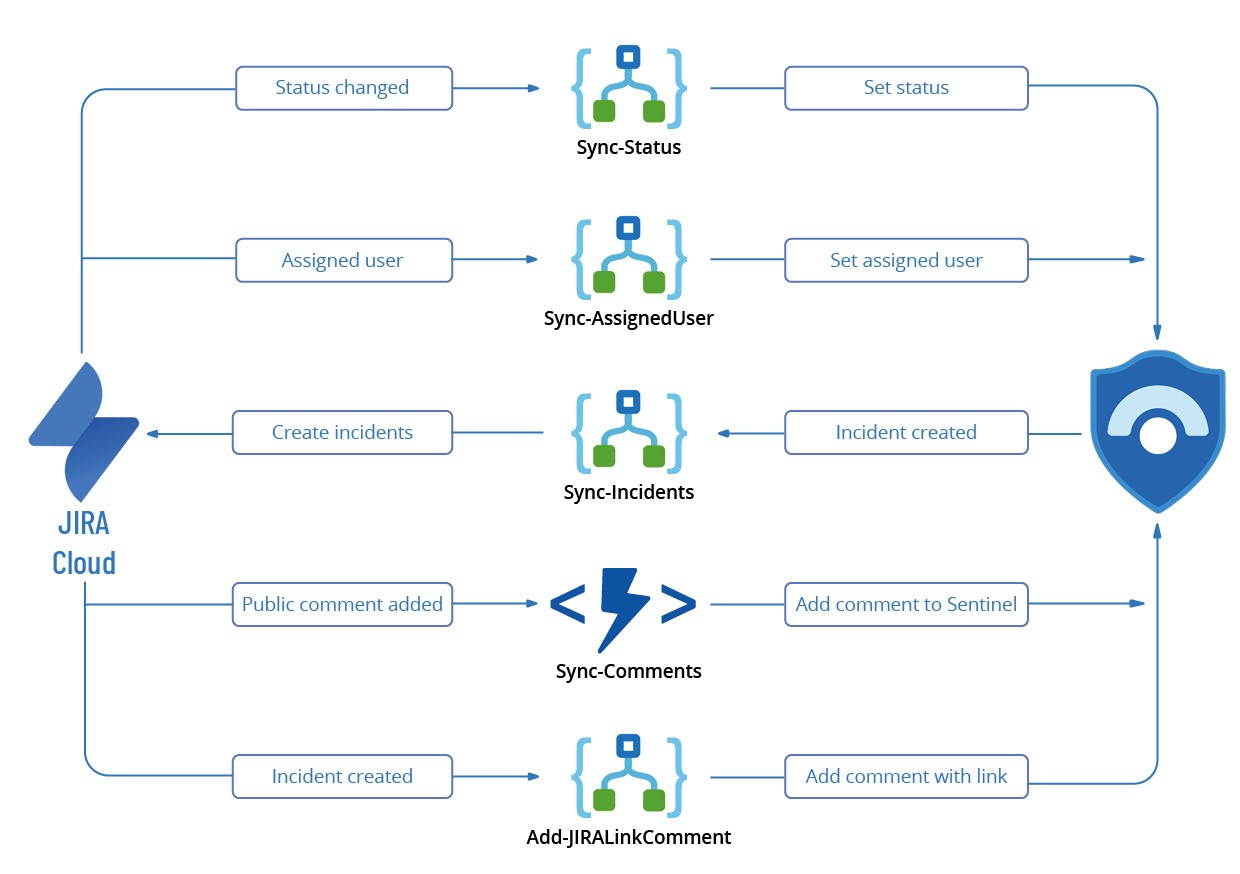
Blog post with more background information
Implementation
To implement this solution, a few different steps need to be done:
- Create necessary Service Principals
- JIRA Configuration
- Custom fields
- Deploy Automation for JIRA rules (used for sync from JIRA to Microsoft Sentinel)
- Deploy the Key Vault and add secrets
- Deploy Azure Logic Apps (4) through ARM deployment
- Deploy Azure Function for comment sychronization and add the Powershell code (check the Functions)
- Create Sentinel Automation Rule
1. Create Service Principal
The tool requires a service principals for authentication to different services:
- Authentication to Microsoft Entra ID to retrieve user ID's (for assigning incidents in Sentinel)
Microsoft Entra ID Service Principal
This Service Principal needs to have User.Read.All application permissions. This Service Principal is used in the Logic app 'Sync-AssignedUser.
2. JIRA Configuration
JIRA Custom Fields
Introduction
A lot of the Sentinel specific information is stored inside of Custom Fields in JIRA which need to be created. This document contains an overview of the different custom fields that are used in the Logic Apps. All Logic Apps need to be updated with the correct ID's of the fields.
Custom Fields overview
| Field Name | Field ID | Field Type |
|---|---|---|
| Organizations | customfield_10002 | Built-in |
| Sentinel Incident URL | customfield_10144 | Url Field |
| Incident ID | customfield_10145 | Text Field (Single line) |
| Closure Comment | customfield_10146 | Text Field (Multiline) |
| Closure Reason | customfield_10047 | Select List (Single choice) |
| Tenant Name | customfield_10149 | Select List (Single Choice) |
| Created At | customfield_10154 | Date Time Picker |
| Att&ck Tactics | customfield_10155 | Select List (Multiple choices) |
| Affected User | customfield_10158 | Text Field (Multiline) |
| Subscription ID | customfield_10162 | Text Field (Singline) |
| Sentinel Resource Group | customfield_10169 | Text Field (Singline) |
| Sentinel Workspace Name | customfield_10170 | Text Field (Singline) |
| Sentinel Workspace ID | customfield_10172 | Text Field (Singline) |
| Sentinel Incident ID | customfield_10173 | Text Field (Singline) |
| Sentinel Incident ARM ID | customfield_10175 | Text Field (Singline) |
The Att&ck Tactics list contains all Sentinel Tactics. The Closure Reason contains all valid Sentinel Closure Reasons
JIRA Automation Rules
In order to synchronize changes from JIRA to Sentinel, Automation for JIRA is used to trigger Logic Apps when certain conditions are met. Automation for JIRA is an integrated plugin that is free to use for JIRA Service Management.
This document will describe the different automation rules that are necessary to trigger the correct Logic Apps/Functions.
In almost every rule, the step 're-fetch issue data' is used. This will make sure we are using the most up to date information in our Logic Apps. If you are not using this, you might encouter failures.
Navigate to the project settings, then go to Automation to create rules.
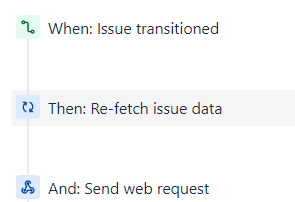
Sync Status
This automation rule has a trigger 'Issue Transitioned' and will trigger the Logic App 'Sync-Status'. Provide the POST URL of the Logic App in the 'Send Web Request' Step. As webhook data, specify 'issue data'.
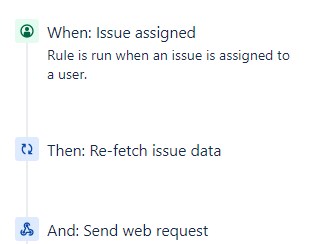
Sync Assigned User
This automation rule has a trigger 'Issue Assigned' and will trigger the Logic App 'Sync-AssignedUser'. Provide the POST URL of the Logic App in the 'Send Web Request' Step. As webhook data, specify 'issue data'.
Create Link
This automation rule has a trigger 'Issue created' and will trigger the Logic App 'Add-JIRALinkComment'.
[Content truncated...]
Browse: 🏠 · Solutions · Connectors · Methods · Tables · Content · Parsers · ASIM Parsers · ASIM Products · Logic Apps · 📊