Digital Shadows Searchlight

Browse: 🏠 · Solutions · Connectors · Methods · Tables · Content · Parsers · ASIM Parsers · ASIM Products · Logic Apps · 📊
| Attribute | Value |
|---|---|
| Connector ID | DigitalShadowsSearchlightAzureFunctions |
| Publisher | Digital Shadows |
| Used in Solutions | Digital Shadows |
| Collection Method | Azure Function |
| Connector Definition Files | DigitalShadowsSearchlight_API_functionApp.json |
| Ingestion API | Log Ingestion API — Azure Function code uses LogsIngestionClient/Log Ingestion API |
| Microsoft Learn | View on Learn |
The Digital Shadows data connector provides ingestion of the incidents and alerts from Digital Shadows Searchlight into the Microsoft Sentinel using the REST API. The connector will provide the incidents and alerts information such that it helps to examine, diagnose and analyse the potential security risks and threats.
Tables Ingested
This connector ingests data into the following tables:
| Table | Transformations | Ingestion API | Lake-Only |
|---|---|---|---|
DigitalShadows_V2_CL |
✗ | ✓ | ✗ |
💡 Tip: Tables with Ingestion API support allow data ingestion via the Azure Monitor Data Collector API, which also enables custom transformations during ingestion.
Permissions
Resource Provider Permissions:
- Workspace (Workspace): read and write permissions on the workspace are required.
- Keys (Workspace): read permissions to shared keys for the workspace are required. See the documentation to learn more about workspace keys.
Custom Permissions:
- Microsoft.Web/sites permissions: Read and write permissions to Azure Functions to create a Function App is required. See the documentation to learn more about Azure Functions.
- Role Assignment on the Data Collection Rule: Permission to assign the Monitoring Metrics Publisher role on the Data Collection Rule to each Function App's system-assigned managed identity is required at deployment time (e.g. Owner or User Access Administrator at the deployment scope).
- REST API Credentials/permissions: Digital Shadows account ID, secret and key is required. See the documentation to learn more about API on the
https://portal-digitalshadows.com/learn/searchlight-api/overview/description.
Setup Instructions
⚠️ Note: These instructions were automatically generated from the connector's user interface definition file using AI and may not be fully accurate. Please verify all configuration steps in the Microsoft Sentinel portal.
NOTE: This connector uses Azure Functions to connect to a 'Digital Shadows Searchlight' to pull its logs into Microsoft Sentinel. This might result in additional data ingestion costs. Check the Azure Functions pricing page for details.
(Optional Step) Securely store the 'Digital Shadows Searchlight' API authorization key(s) or token(s) in Azure Key Vault. Azure Key Vault provides a secure mechanism to store and retrieve key values. Follow these instructions to use Azure Key Vault with an Azure Function App.
STEP 1 - Configuration steps for the 'Digital Shadows Searchlight' API
The provider should provide or link to detailed steps to configure the 'Digital Shadows Searchlight' API endpoint so that the Azure Function can authenticate to it successfully, get its authorization key or token, and pull the appliance's logs into Microsoft Sentinel.
STEP 2 - Choose ONE from the following two deployment options to deploy the connector and the associated Azure Function
IMPORTANT: Before deploying the 'Digital Shadows Searchlight' connector, have the resource ID of the Log Analytics workspace where the
DigitalShadows_V2_CLtable will live, as well as the 'Digital Shadows Searchlight' API authorization key(s) or Token, readily available. The connector authenticates to Azure Monitor using a system-assigned managed identity; no shared workspace key is required.
Option 1 - Azure Resource Manager (ARM) Template
Use this method for automated deployment of the 'Digital Shadows Searchlight' connector.
Click the Deploy to Azure button below.
Select the preferred Subscription, Resource Group and Location.
Enter the DcrWorkspaceResourceId (the full resource ID of your Log Analytics workspace, in the form
/subscriptions/<sub>/resourceGroups/<rg>/providers/Microsoft.OperationalInsights/workspaces/<workspace>), API Username, API Password, 'and/or Other required fields'.
Note: If using Azure Key Vault secrets for any of the values above, use the
@Microsoft.KeyVault(SecretUri={Security Identifier})schema in place of the string values. Refer to Key Vault references documentation for further details.
- Mark the checkbox labeled I agree to the terms and conditions stated above.
- Click Purchase to deploy. The template provisions a Data Collection Endpoint, a Data Collection Rule, the
DigitalShadows_V2_CLtable, and grants the Function Apps' managed identities the Monitoring Metrics Publisher role on the Data Collection Rule.
Option 2 - Manual Deployment of Azure Functions
Use the following step-by-step instructions to deploy the 'Digital Shadows Searchlight' connector manually with Azure Functions.
1. Create a Function App
- From the Azure Portal, navigate to Function App.
- Click + Create at the top.
- In the Basics tab, ensure Runtime stack is set to python 3.11.
- In the Hosting tab, ensure Plan type is set to 'Consumption (Serverless)'. 5.select Storage account
- 'Add other required configurations'.
- 'Make other preferable configuration changes', if needed, then click Create.
2. Enable the system-assigned managed identity and grant it permission to publish metrics
- In the Function App screen, open Identity under Settings.
- On the System assigned tab, set Status to On and click Save. Note the displayed Object (principal) ID — you will need it to grant the role.
- Navigate to the Data Collection Rule (DCR) that owns the
Custom-DigitalShadows_V2_CLstream and open its Access control (IAM) blade. - Click + Add role assignment, select the Monitoring Metrics Publisher role, choose Managed identity as the member type, and assign the Function App's system-assigned identity. Save.
- Repeat steps 1-4 for the second (
exclude) Function App if you are running both.
3. Import Function App Code(Zip deployment)
- Install Azure CLI
- From terminal type az functionapp deployment source config-zip -g
-n and hit enter. Set the--src ResourceGroupvalue to: your resource group name. Set theFunctionAppvalue to: your newly created function app name. Set theZip Filevalue to:digitalshadowsConnector.zip(path to your zip file). Note:- Download the zip file from the link - Function App Code
4. Configure the Function App
- In the Function App screen, click the Function App name and select Configuration.
- In the Application settings tab, select + New application setting.
- Add each of the following application settings individually, under Name, with their respective string values (case-sensitive) under Value:
DigitalShadowsAccountID
DigitalShadowsKey
DigitalShadowsSecret
DigitalShadowsURL
HistoricalDays
DCE_URL
DCR_IMMUTABLE_ID
STREAM_NAME
ClassificationFilterOperation
HighVariabilityClassifications
FUNCTION_NAME
(add any other settings required by the Function App)
Set the
DigitalShadowsURLvalue to:https://api.searchlight.app/v1Set theHighVariabilityClassificationsvalue to:exposed-credential,marked-documentSet theClassificationFilterOperationvalue to:excludefor exclude function app orincludefor include function app Set theDCE_URLvalue to your Data Collection Endpoint logs-ingestion URI (e.g.https://<dce-name>.<region>-1.ingest.monitor.azure.com). Set theDCR_IMMUTABLE_IDvalue to the immutable ID of the Data Collection Rule (visible in the DCR overview blade asImmutable ID). Set theSTREAM_NAMEvalue to:Custom-DigitalShadows_V2_CL
- Once all application settings have been entered, click Save.
Note: If using Azure Key Vault secrets for any of the values above, use the
@Microsoft.KeyVault(SecretUri={Security Identifier})schema in place of the string values. Refer to Azure Key Vault references documentation for further details.
Additional Documentation
📄 Source: [Digital Shadows\Data Connectors\readme.md](https://github.com/Azure/Azure-Sentinel/blob/master/Solutions/Digital Shadows\Data Connectors\readme.md)
Digital Shadows Integration for Microsoft Sentinel
Introduction
This folder contains the Azure function time trigger code for Digital Shadows-Microsoft Sentinel connector. The connector will run periodically and ingest the Digital Shadows incidents and alerts data into the Microsoft Sentinel logs custom table DigitalShadows_V2_CL via the Logs Ingestion API. The Function Apps authenticate to Azure Monitor using their system-assigned managed identity (granted the Monitoring Metrics Publisher role on the Data Collection Rule). After the data has been ingested, Analytic rule will promote the data and create the Microsoft Sentinel incidents out of them. Analytic rule will also trigger playbooks, status-and-severity-update and add-comments. The playbooks will change the status and severity and add comments to Microsoft Sentinel incidents according to the latest Digital Shadows data logged. The data can be visualized in the Workbook labelled Digital Shadows workbook.
Folders
Digital shadows/- This contains the package, requirements, ARM JSON file, connector page template JSON, and other dependencies.DigitalShadowsConnectorAzureFunction/- This contains the Azure function source code along with sample data.
Installing for the users
After the solution is published, we can find the connector in the connector gallery of Microsoft Sentinel among other connectors in Data connectors section of Sentinel.
i. Go to Microsoft Sentinel -> Data Connectors
ii. Click on the Digital Shadows connector, connector page will open.
iii. Click on the blue Deploy to Azure button.
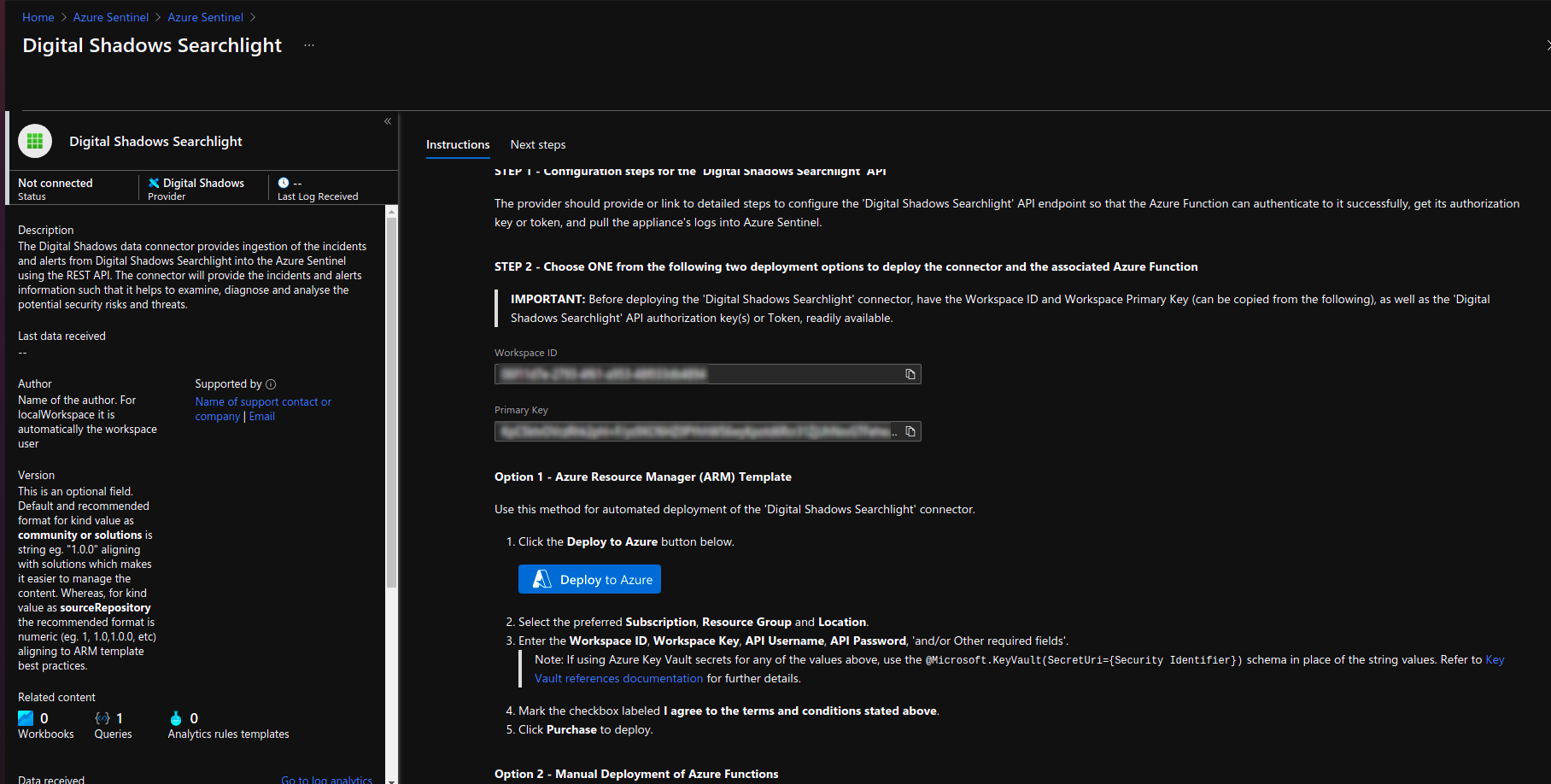
It will lead to a custom deployment page where after entering accurate credentials and other information, the resources will get created.
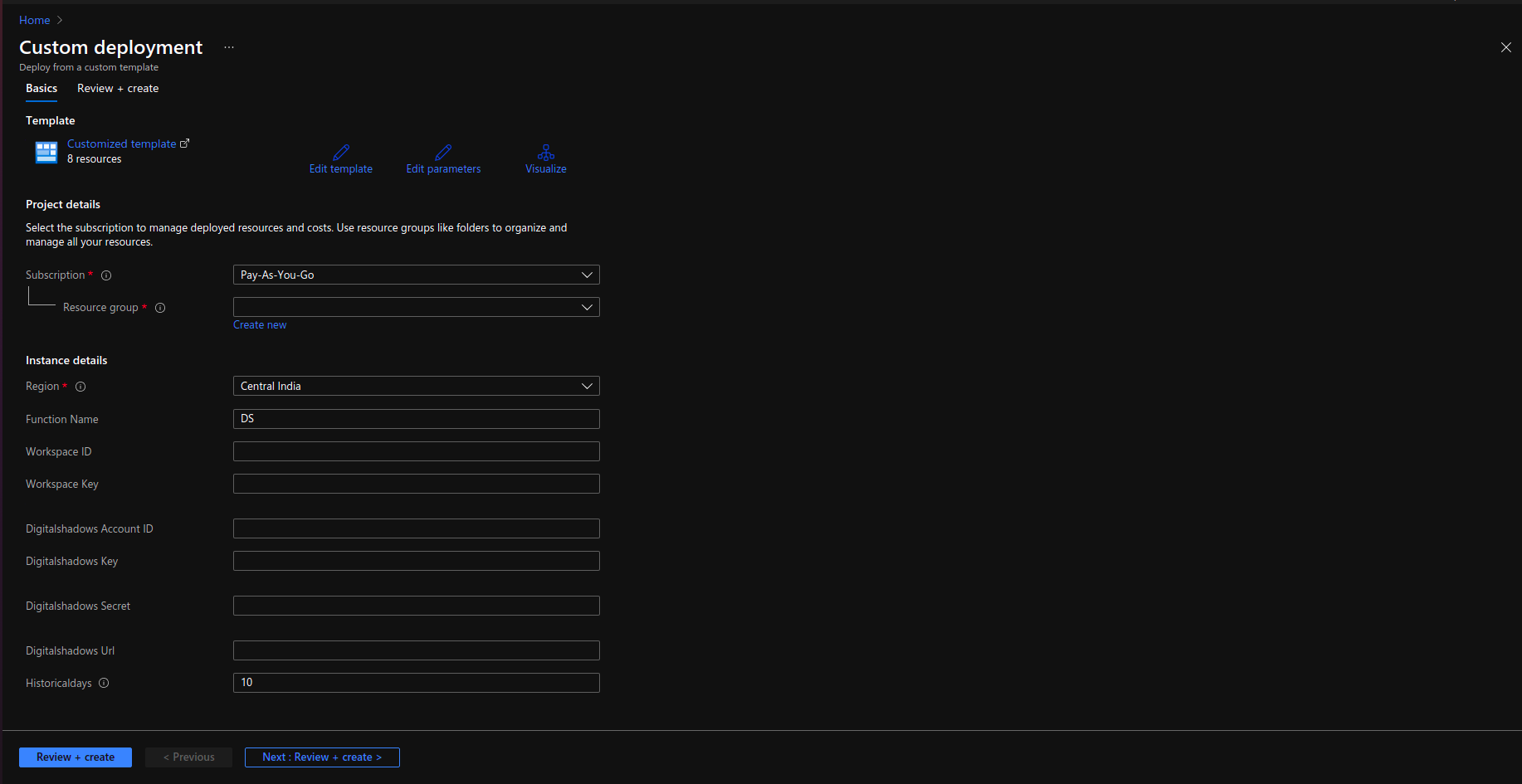
The connector should start ingesting the data into the logs in next 5-10 minutes.
Installing for testing
i. Log in to Azure portal using the URL - https://portal.azure.com/?feature.BringYourOwnConnector=true.
ii. Go to Microsoft Sentinel -> Data Connectors
iii. Click the “import” button at the top and select the json file DigitalShadowsSearchlight_API_functionApp.JSON downloaded on your local machine from GitHub.
iv. This will load the connector page and rest of the process will be same as the Installing for users guideline above.
Each invocation and its logs of the function can be seen in Function App service of Azure, available in the Azure Portal outside the Microsoft Sentinel.
i. Go to Function App and click on the function which you have deployed, identified with the given name at the deployment stage.
ii. Go to Functions -> DigitalShadowsConnectorAzureFunction -> Monitor
iii. By clicking on invocation time, you can see all the logs for that run.
Note: Furthermore we can check logs in Application Insights of the given function in detail if needed. We can search the logs by operation ID in Transaction search section.
Browse: 🏠 · Solutions · Connectors · Methods · Tables · Content · Parsers · ASIM Parsers · ASIM Products · Logic Apps · 📊